

Adding your people to Feedback Flock brings your teachers, observers, and administrators together so you can begin observations and share meaningful feedback. You can add users individually or import multiple people at once using a CSV file, assigning each person the appropriate role and school to give them the access they need. This guide walks you through both options to get your team ready.
Prerequisites:
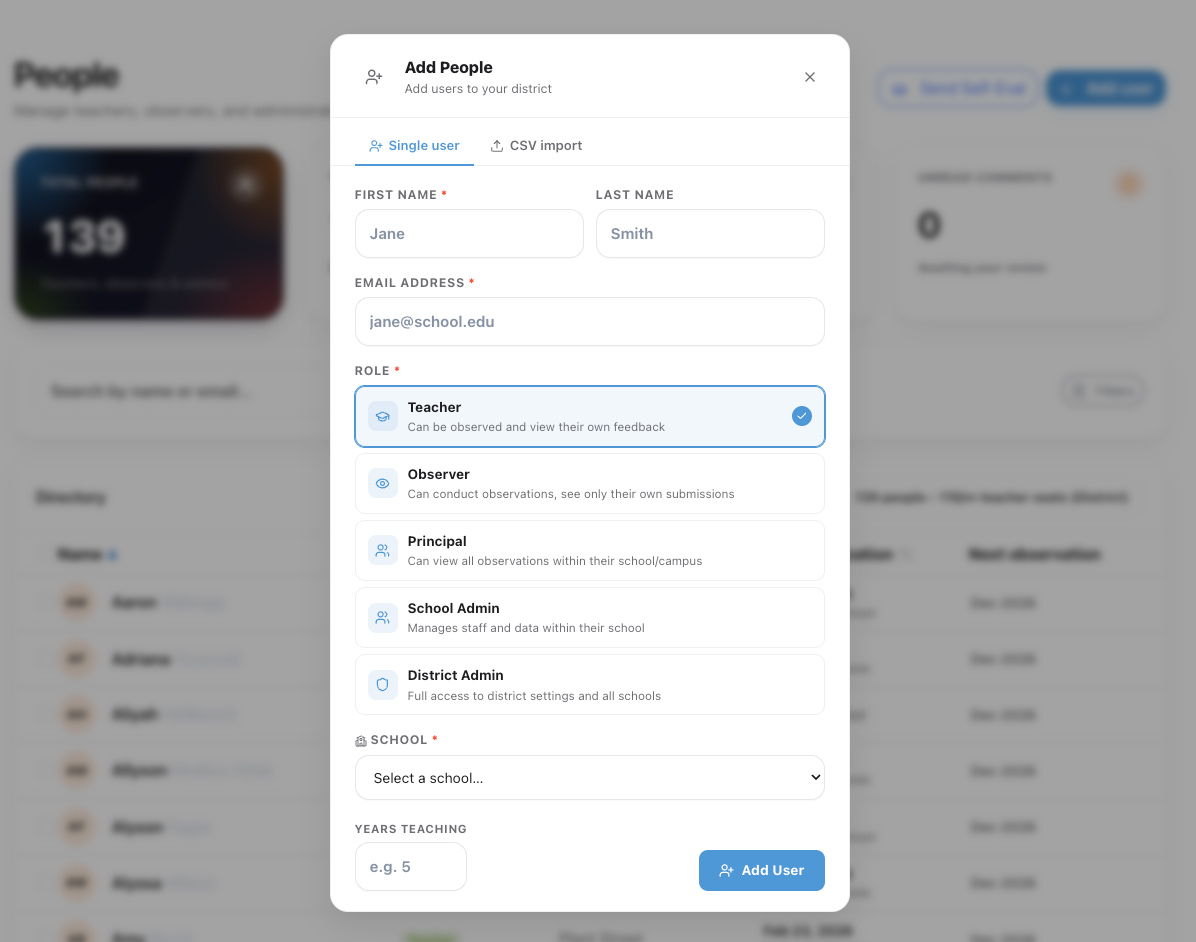
Adding your team is a simple but necessary step to get up and running in Feedback Flock. From the ‘People’ page, once you click ‘+ Add User’ you are presented with two options to proceed:
Adding a few users is quick and easy with the Single User selection. For each user you must enter:
Then choose ‘Add User’ and the user will receive the same email invite with temporary password that you received when you first accessed Feedback Flock. As a reminder these users can also Google Single Sign-In for ease of access.
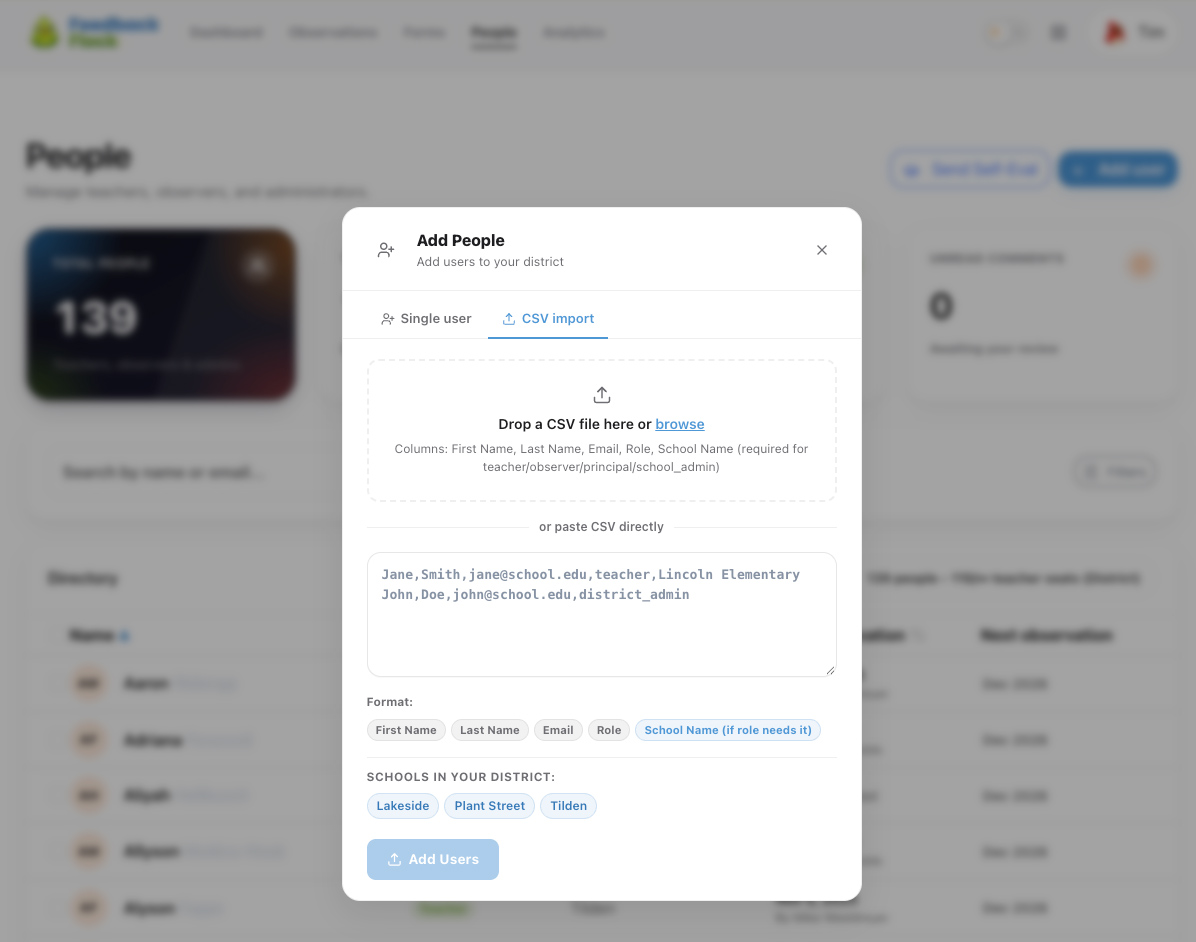
Adding an entire district can be done with a properly formatted .csv spreadsheet. The spreadsheet must be formatted into the following 5 columns in this order:
First Name, Last Name, Email, Role, School Name
Import options for role are: teacher, observer, principal, and district_admin
With the spreadsheet properly formatted, upload your spreadsheet by browsing or dropping it into the upload field, then select ‘Add Users’. Please wait for the user import to finish before leaving the screen.
Reach out to our support team. The Feedback Flock team is here to support you, whether you have a best practices question, feature request, or are just wondering how things work.