

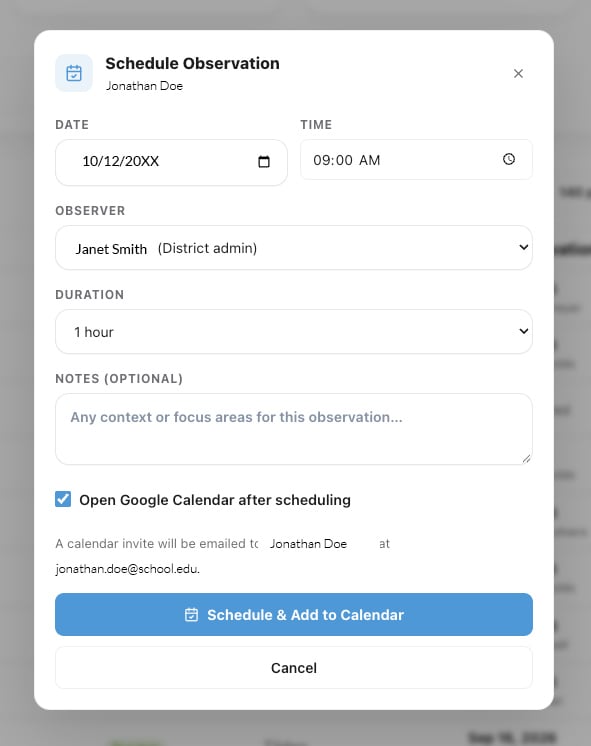

You’ve completed your first observation, but with more teachers to visit and a busy schedule, finding time for the rest can feel overwhelming. Feedback Flock makes it easy to share the workload or schedule your Observations in advance. The School Admin role allows your administrative assistant to schedule observations for your team without being an Observer. They can keep your calendar organized while you focus on supporting your teachers.
Prerequisites:
After logging in and landing on the Dashboard, the Observation recommendations section shows Observations due this month based on any required rules set. Start here to see if there are any Observations that need to be prioritized. For users who have an Observation due, you can click the ‘calendar icon’ next to their ‘Start Observation’ and proceed to ‘Start Scheduling’ step 3 below.
Next, jump over to the People tab where we can choose between sorting by the ‘Last Observation’ column or utilizing the ‘Filters’ to choose a timespan since a teachers last Observation. For scheduling Observations, useful filters include ‘Never Observed’, ’90+ Days Ago’, etc.
After sorting by your appropriate needs, you should be presented with a list of your district or school faculty due for their next Observation.
To schedule their Observation:
Return to the ‘People‘ tab or ‘Dashboard‘ and start scheduling more Observations.
Reach out to our support team for any questions regarding scheduling. The Feedback Flock team is here to support you, whether you have a best practices question, feature request, or are just wondering how things work.