
Setting Up Your Observation Requirements
A District Administrator Guide
Observation requirements help principals ensure each teacher receives the appropriate observations throughout the school year. You can tailor requirements to your staff, such as two formal observations for new teachers and one for returning teachers. When you pair an observation with a self-reflection, the teacher’s responses appear at the top of their observation, giving the observer insight into what the teacher is working on and helping guide more relevant, personalized feedback. This guide walks you through setting up these requirements in Feedback Flock.
Prerequisites:
- You must be a District Admin role. The Observation Requirement settings are not visible to other roles.
- Your Observation and Self Reflection Forms should be created. Both are not required, but do improve the Observation process.
How to Setup Your Observation Requirements
District Administrators can proceed with configuring Observation requirements as follows:
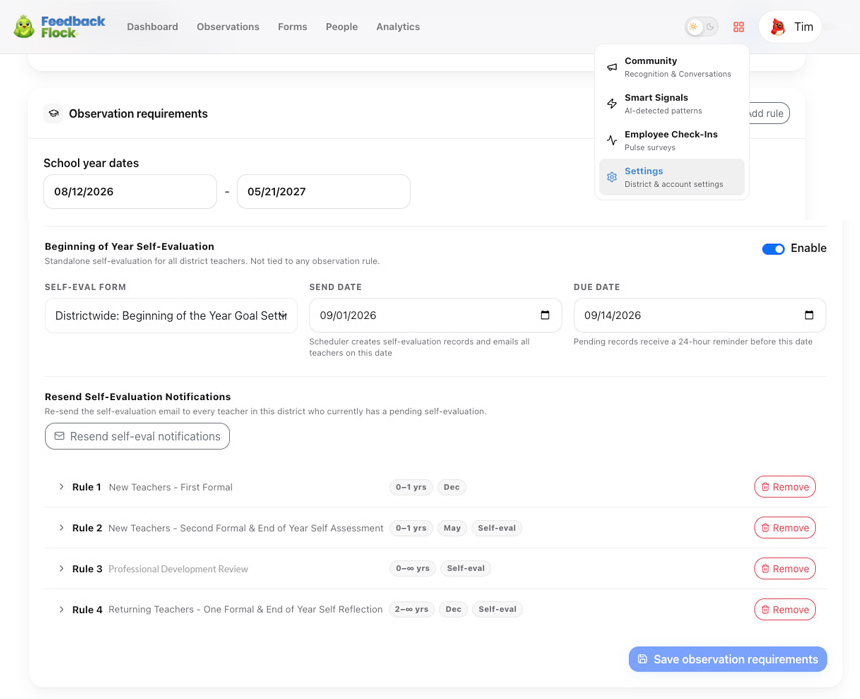
- Click the ‘4-Tiles’ next to your profile icon.
- Click ‘Settings’.
- Scroll Down to ‘Observation Requirements’.
- Start by filling in your School Year Dates in mm/dd/yyyy format, such as 08/12/2030.
- If you built and intend on running a ‘Self-Evaluation form’ (i.e. Goal Setting/Classroom Checklist) toggle ‘Enable’ next to the ‘Beginning of Year Self-Evaluation’ field. Assuming you added a self-eval form, please select the appropriate ‘Self-Eval Form’ from the dropdown list. Then set your Send Date, that teachers will receive a notice to complete a self-evaluation and lastly, it’s intended completion date.
- Expand ‘Rule 1’ dropdown to configure your first rule, or for additional rules click ‘+ Add Rule’.
- Fill in the ‘Rule Name’ with relevant details, such as ‘Formal First Year – One of Two’.
- Then where it says ‘Teacher Experience’ indicate how many years of teaching experience this rule should apply to. The default 0 – ∞ applies to all teachers. Note: Common ranges include tiers for how long employees have been teaching at the school; for example, 0-1 years, 2-3 years, 4-∞.
- Under ‘Observation Form’ choose the appropriate Observation Form from the provided list.
- Set a date for the Observation Due Date. This will update the list of users who are due for an Observation before this deadline if they have not yet received an Observation. Pro Tip: Invite your Administrative Assistant to Feedback Flock and assign them the ‘School Admin’ role. This role is designed to utilize the Calendar View on the Dashboard to schedule out a series of teacher observations.
- If you intend on having another Self-Evaluation such as an end of year eval, please check the box for ‘Require Self-Evaluation’. Note: To add a ‘Self-Evaluation Form’ without additional Observation requirements, simply omit the Observation Form Name and Due Month.
- Click ‘Save observation requirements’. The rule will now apply.
- To add an additional rule, start from Step 6 and repeat until you have achieved your goals.
Have a Question on Rules?
Reach out to our support team. The Feedback Flock team is here to support you, whether you have a best practices question, feature request, or are just wondering how things work.